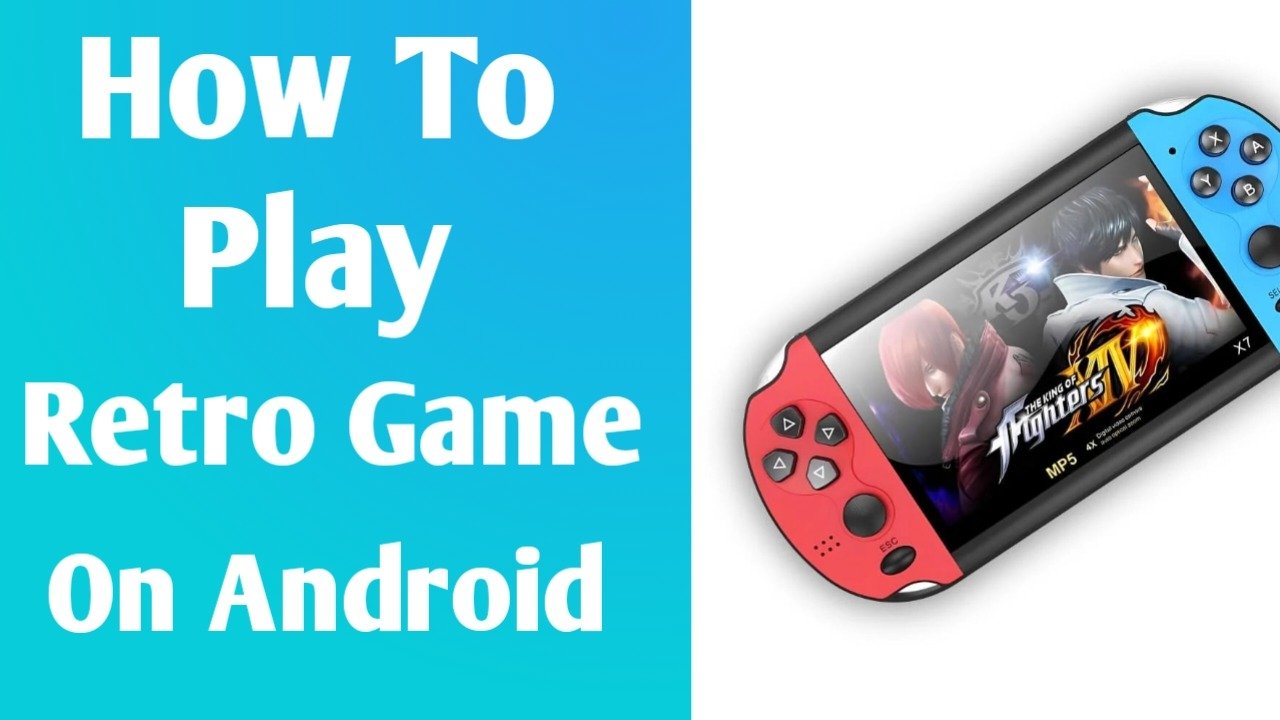
Retro games have a special kind of magic. Whether it’s the pixel art, chiptune music, or pure nostalgia of childhood gaming sessions, classic games from the 80s, 90s, and early 2000s still hold a strong emotional pull. Thanks to modern smartphones, you no longer need old consoles or cartridges—your Android phone is powerful enough to become a full retro gaming machine.
In this article, you’ll learn how to play retro games on Android, from understanding emulation to setting up emulators, finding games legally, using controllers, and optimizing your experience. Even if you’re a beginner, this guide will walk you through everything step by step.
What Are Retro Games?
Retro games usually refer to titles released on older gaming systems such as:
- Nintendo Entertainment System (NES)
- Super Nintendo Entertainment System (SNES)
- Game Boy Advance (GBA)
- Sega Genesis
- PlayStation (PS1)
These games were designed for hardware that is now outdated or discontinued. To run them on modern devices like Android phones, we use something called an emulator.
What Is an Emulator?
An emulator is an app that mimics old gaming hardware in software form. It allows your Android phone to behave like a classic console, so the original games can run smoothly.
For example:
- A NES emulator recreates NES hardware
- A PS1 emulator simulates the original PlayStation
Your phone handles the processing, graphics, sound, and controls digitally, making retro gaming portable and convenient.
Best Retro Game Emulators for Android
Here are some of the most popular and reliable emulators available for Android:
1. RetroArch
RetroArch is an all-in-one emulator that supports dozens of systems. Instead of installing multiple apps, you can play NES, SNES, GBA, PS1, and more from one interface.
Pros
- Supports many consoles
- Highly customizable
- Free and open-source
Cons
- Slight learning curve for beginners
2. My Boy!
A popular emulator focused on Game Boy Advance games. It’s lightweight, fast, and very beginner-friendly.
Features
- Save states
- Fast forward
- Cheat code support
3. Dolphin Emulator
If you want to go slightly more modern, Dolphin lets you play GameCube and Wii games on high-end Android devices.
Note: Requires a powerful phone for smooth performance.
4. PPSSPP
Perfect for playing PlayStation Portable (PSP) classics. It offers HD upscaling and controller support.
Getting Retro Games (ROMs): Legal Basics
The games themselves come as files called ROMs (or ISOs for disc-based systems).
Is downloading ROMs legal?
- Legal if you own the original game and create a backup yourself
- Illegal in many countries if you download games you don’t own
A safe and legal option is to:
- Dump ROMs from your own cartridges or discs
- Buy re-released classics from official stores when available
Always check your local copyright laws before downloading ROMs.
How to Set Up Retro Games on Android (Step-by-Step)
- Install an Emulator
Download your preferred emulator from the Google Play Store. - Create a Games Folder
Make a folder on your phone named “Retro Games” or similar. - Add ROM Files
Place your legally obtained ROMs inside the folder. - Open the Emulator
Scan or manually select the folder containing your games. - Configure Controls
Adjust on-screen buttons or connect a controller. - Start Playing
Launch the game and enjoy instant nostalgia.
Using a Game Controller for a Better Experience
While touch controls work, a physical controller dramatically improves gameplay—especially for action and platformer games.
Popular controller options:
- Bluetooth controllers (Xbox-style or PlayStation-style)
- Compact retro-style controllers
- Phone clip controllers
Most Android emulators automatically detect controllers and allow button remapping for a console-like feel.
Enhancing Your Retro Gaming Experience
Here are some tips to make retro games even better on Android:
Save States
Save your progress instantly at any point—not just at checkpoints.
Fast Forward
Speed up grinding or long dialogues with fast-forward options.
Graphics Filters
Apply CRT, pixel-smoothing, or scanline filters for an authentic retro look.
Cloud Saves
Some emulators support syncing save files via cloud storage.
Performance Tips for Smooth Gameplay
- Close background apps before playing
- Enable “High Performance” mode on your phone (if available)
- Lower internal resolution for older phones
- Use wired or low-latency Bluetooth controllers
Most 8-bit and 16-bit games run perfectly even on budget Android devices.
Why Retro Gaming on Android Is So Popular
Retro gaming on Android has exploded in popularity because it combines:
- Convenience – Games anytime, anywhere
- Affordability – Many emulators are free
- Nostalgia – Relive childhood memories
- Preservation – Keep classic games alive
With one device in your pocket, you can access decades of gaming history.
Final Thoughts
Playing retro games on Android is easier than ever. With the right emulator, legally obtained games, and optional controller, your smartphone becomes a powerful retro console. Whether you want to replay timeless classics or explore games you missed growing up, Android offers a flexible and enjoyable way to experience retro gaming.
If you’d like, I can:
- Recommend the best emulator for your phone
- Help you set up RetroArch step by step
- Suggest must-play retro games by console
Just tell me